 Qurrah
The Qurrah teacher account: a step-by-step guide
For Quran circle teachers, schools and tutors: a class where each student memorizes on their own Qurrah journey, while you see every student's progress, cheer them on, send homework, and verify their memorization with a certificate in your name.
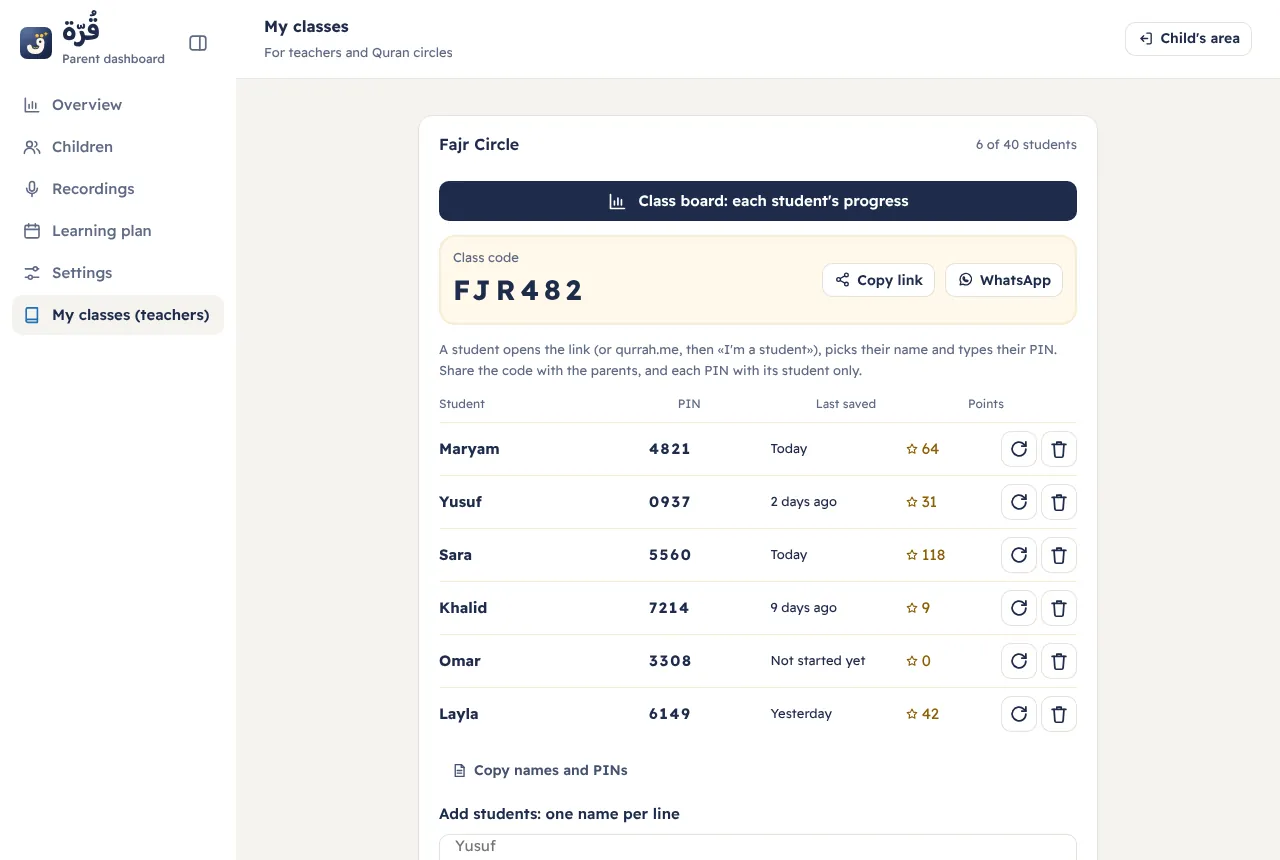
Open “My classes”1Sign in and open “My classes”
- Open qurrah.me, tap “Sign in / Sign up”, and continue with Google or with a link sent to your email (no password).
- Tap “Parents”, then choose “My classes (teachers)” in the menu.
- If you already have a Qurrah family account, it is also your teacher account: your children and your classes in one place.
2Create the class
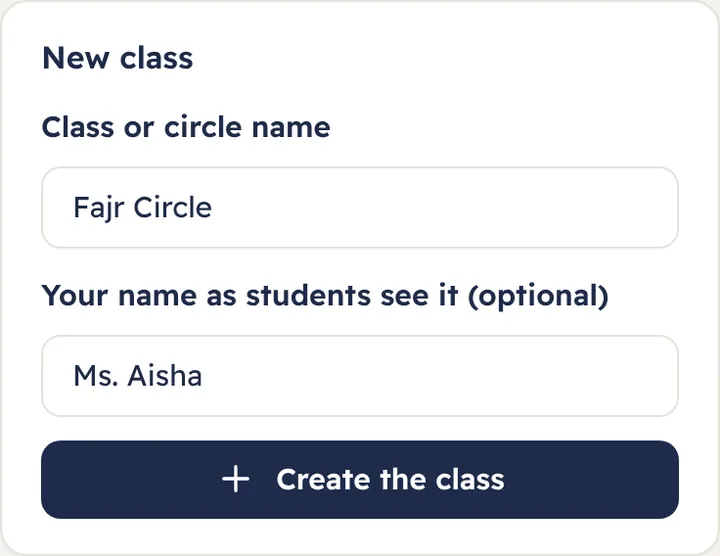
Type the name of the class or circle, and your name as students will see it (like “Ms. Aisha”), then tap “Create the class”. The class gets a 6-character code that students join with.
3Add students and give them their PINs
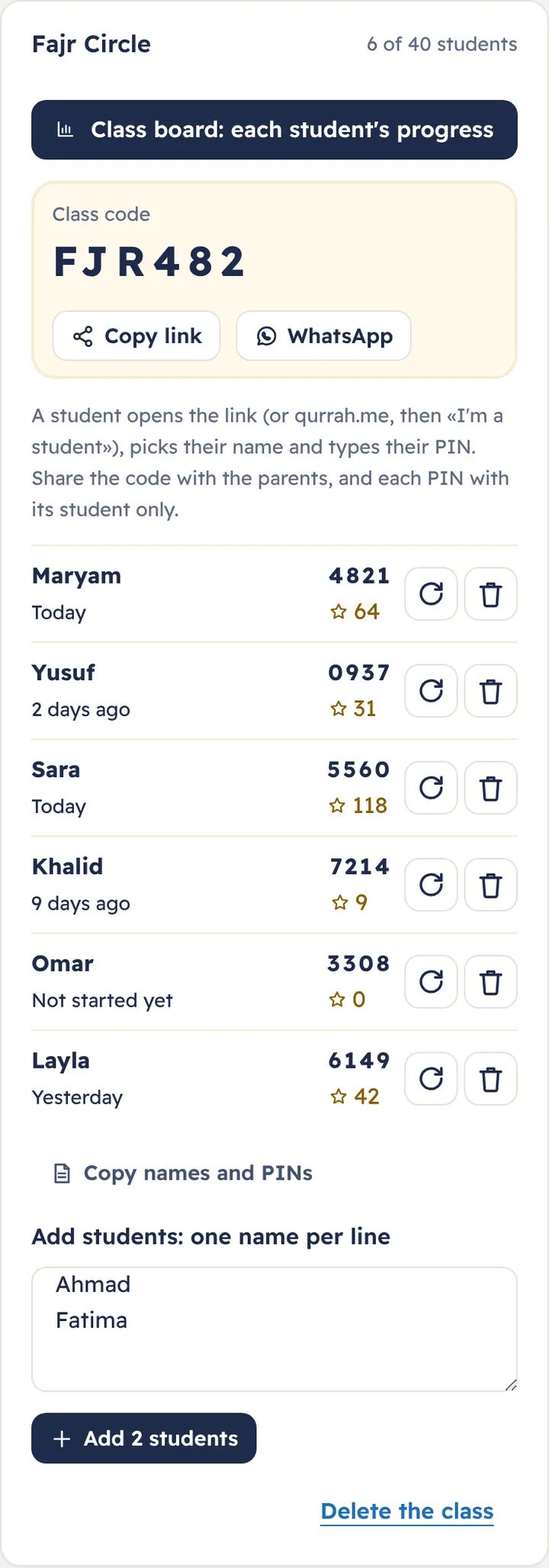
- Type the students' names, one per line, then tap “Add”.
- Each student gets a 4-digit PIN shown next to their name. Give each student their own PIN.
- Share the class link with parents with “Copy link” or “WhatsApp”; the link opens the class directly, with no code to type.
- “Copy names and PINs” copies the whole list, to print as cards for your students.
- The ↻ button gives a student a new PIN if they forget theirs, and the bin removes them from the class.
4How a student joins
A student needs no email and no account, and joins from any device: a phone at home or a tablet in class.
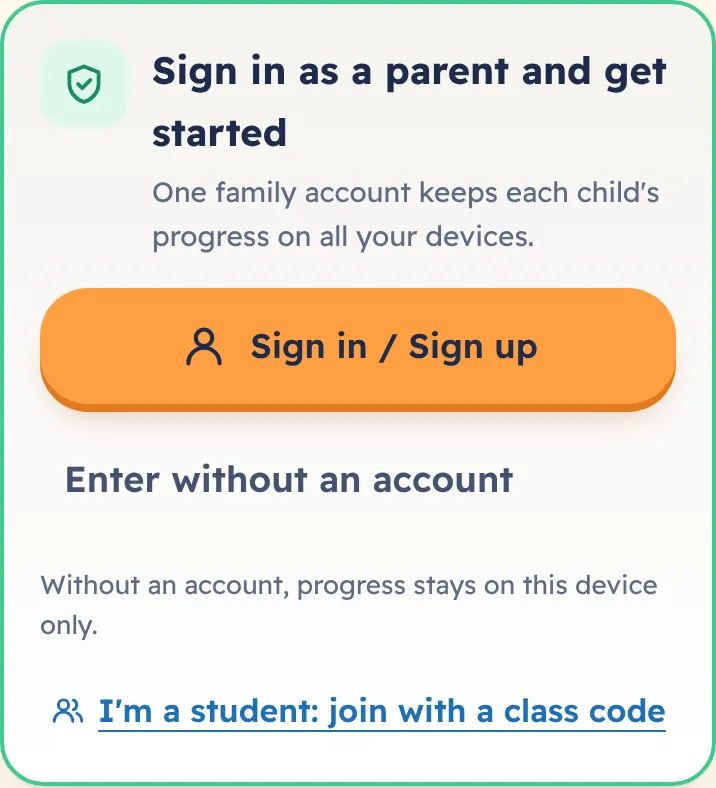
- They open the class link, or open qurrah.me and tap “I'm a student”.
- They type the class code (not needed if they opened the link).
- They pick their name.
- They type their PIN, and their journey starts, saved to the class.
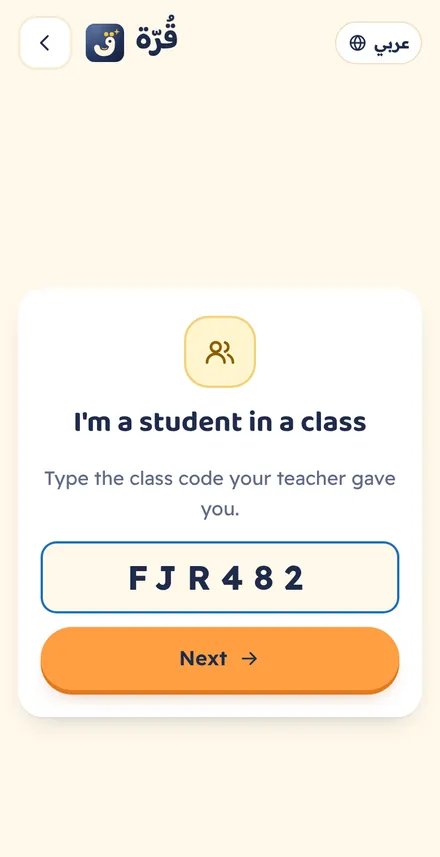
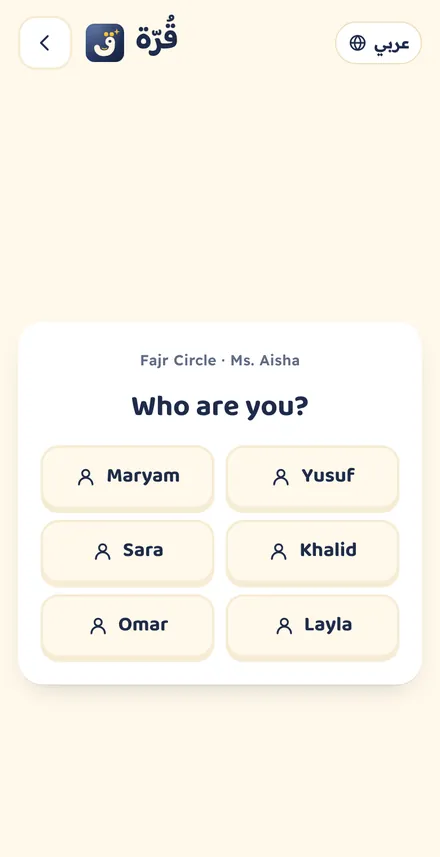
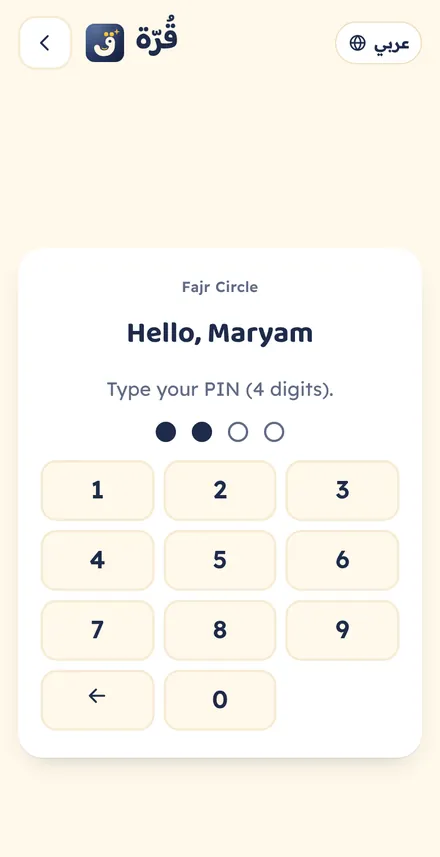
If a student joins from another device with the same name and PIN, they find their progress as it was. After many wrong tries, joining pauses for 15 minutes. A device signed in to a family account must sign out first, or the child can be linked to the class as in the next step.
5A student with a family account? Their parents link them
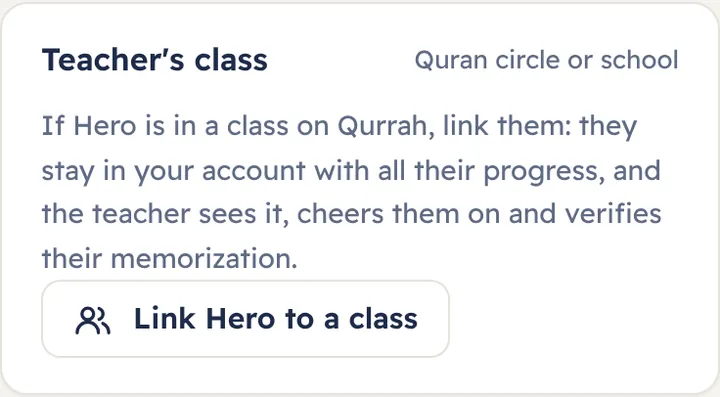
If the student already memorizes in their family's Qurrah account, they don't start over: the parent opens “Parents”, then “Children”, then the child, taps “Link … to a class”, types the class code, picks the child's name in the class and types their PIN. The child stays in the family account with all their progress, their progress reaches you, and your messages reach them.
6The class board: every student's progress
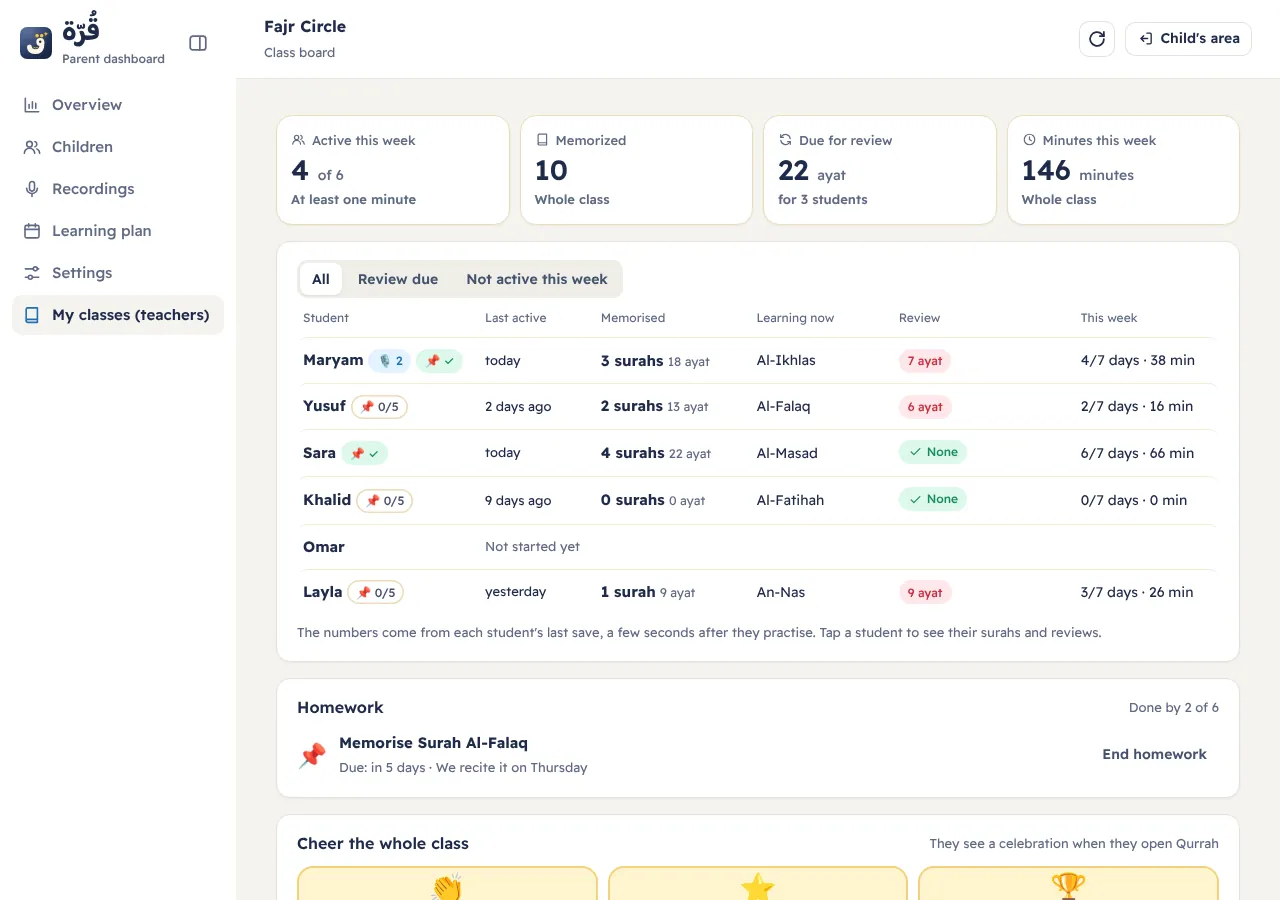
On the class card, tap “Class board”. At the top: who was active this week, the surahs memorized in the class, the ayat waiting for review, and the learning minutes. Below, a row per student: last activity, what they memorized, the surah they are on now, their review, and their days this week.
- Choose “Review due” or “Not active this week” to see who needs you.
- 📌 next to a name is their progress on the homework, and 🎙️ the number of their new recordings.
- The numbers come from the last save on the student's device, and arrive within seconds of their activity. Tap “Refresh” to see them.
- Tap a student's name to open their page: their surahs and stars, the ayat due for review, cheers, recordings, and verification.
7Cheer a student or the whole class
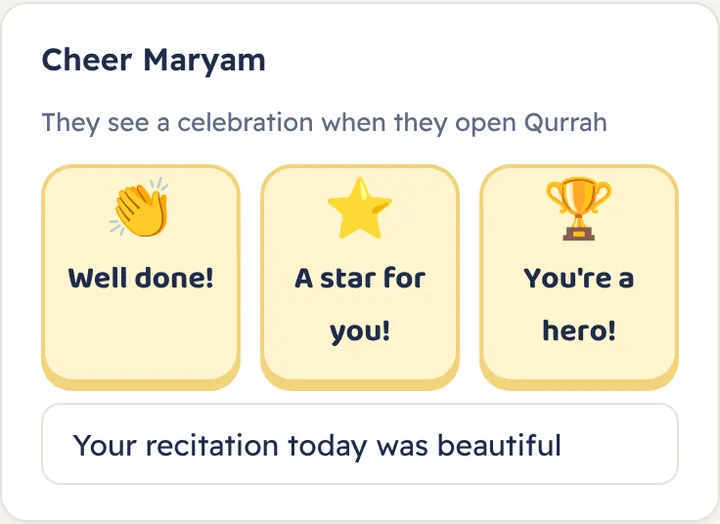
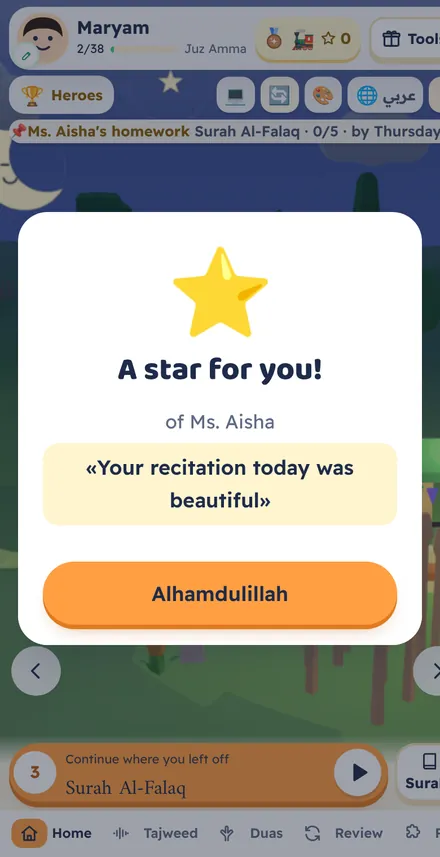
On a student's page, or at the bottom of the class board for the whole class: choose “Well done!”, “A star for you!” or “You're a hero!”, and add a short word if you like. When the student opens Qurrah, a celebration shows your message. Cheers give no points; points are for memorizing only.
8Homework
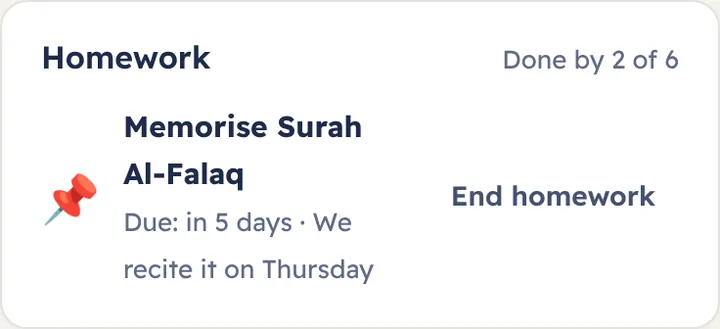
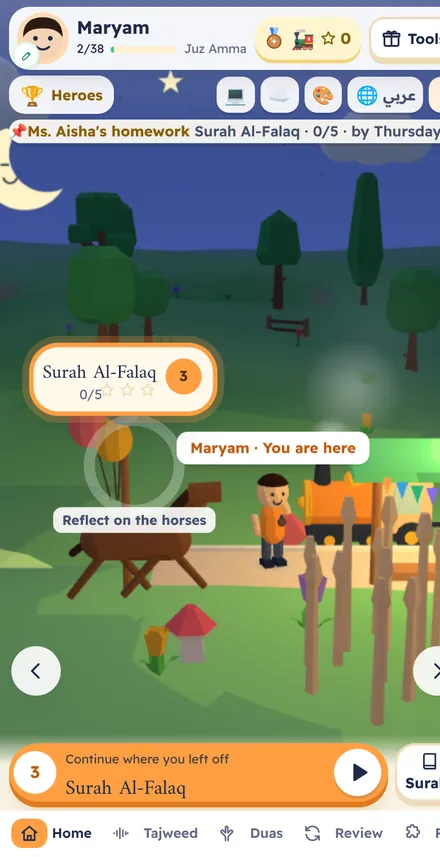
On the class board, pick a surah and a due date, add a note if you like, and tap “Send homework”. Each student sees a homework strip at the top of their home screen and taps it to start memorizing. On the board you see how many finished it, and each student's progress next to their name. There is one homework at a time, and “End homework” removes it.
9Verifying memorization and the certificate
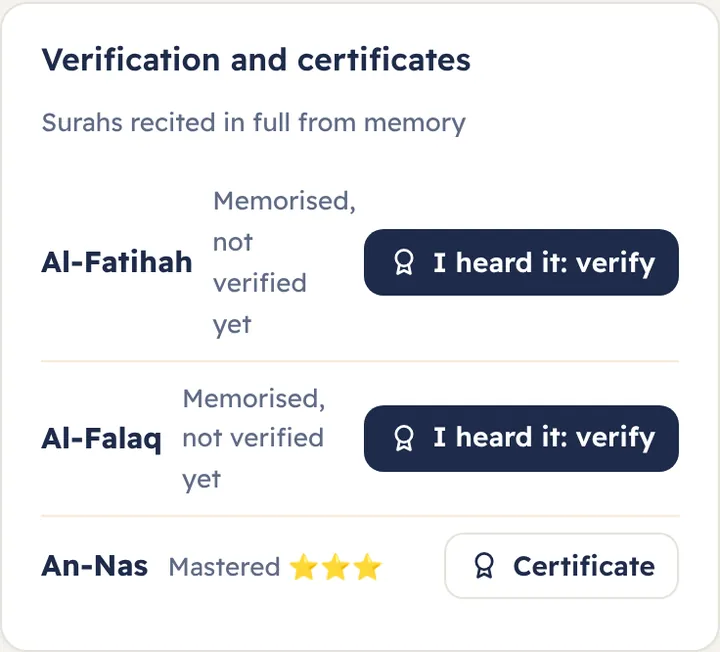
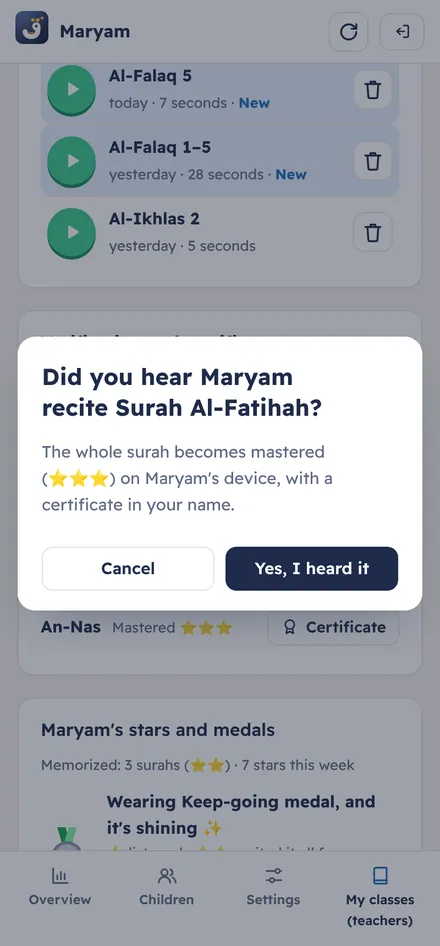
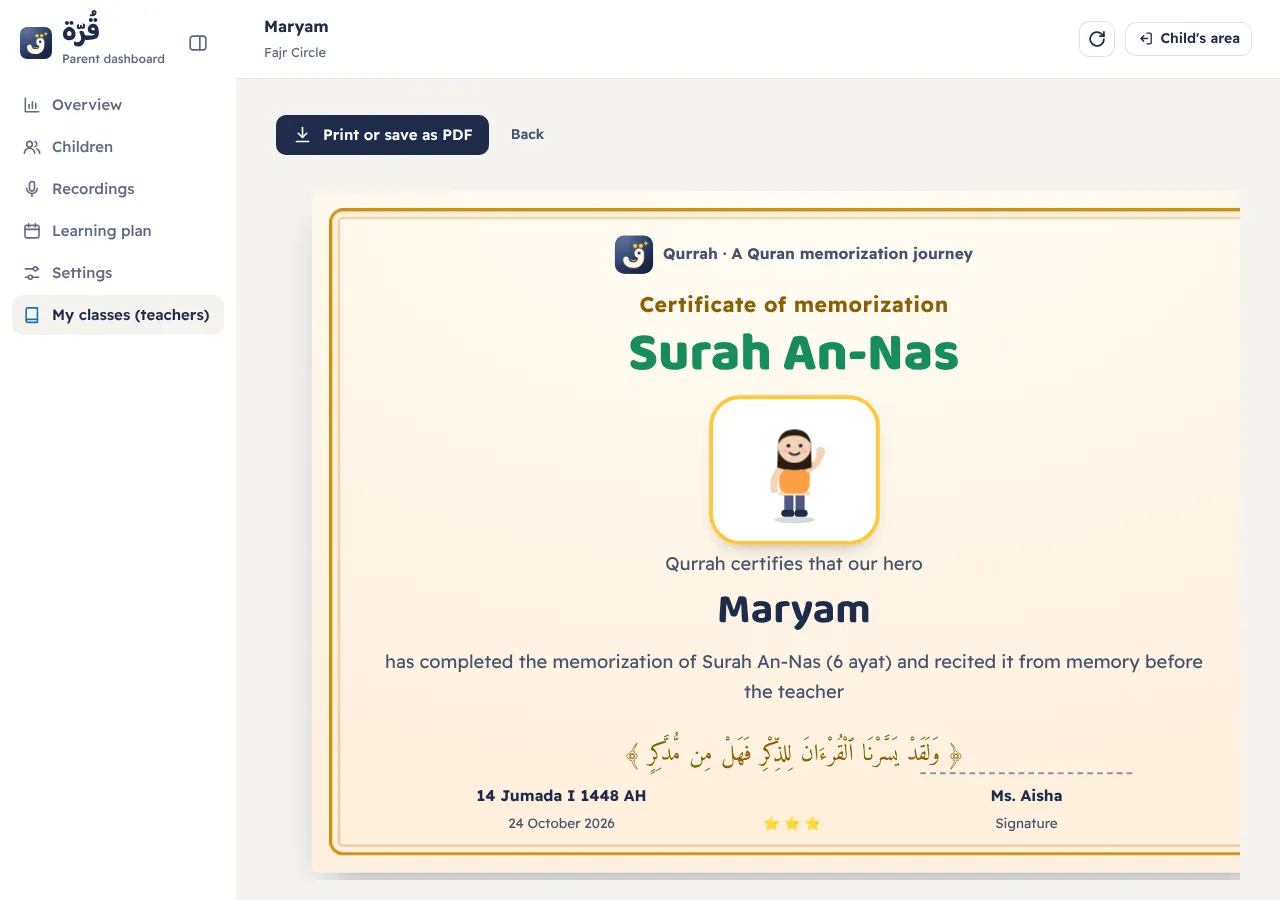
Every surah a student recites in full from memory in the app appears on their page under “Verification and certificates”. If you heard them recite it to you, tap “I heard it: verify”: the surah becomes mastered ⭐⭐⭐ on their device, and they get a certificate in your name that you can print or save as a PDF.
10Hearing a student's recordings
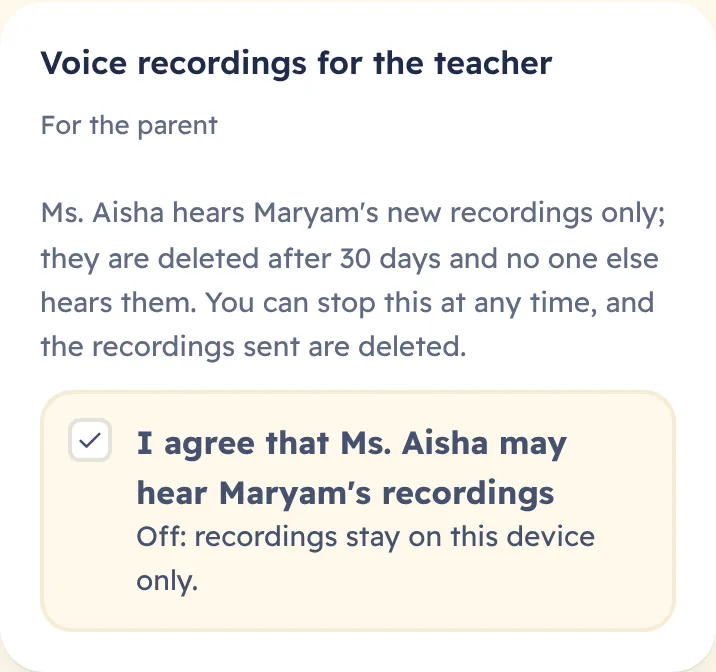
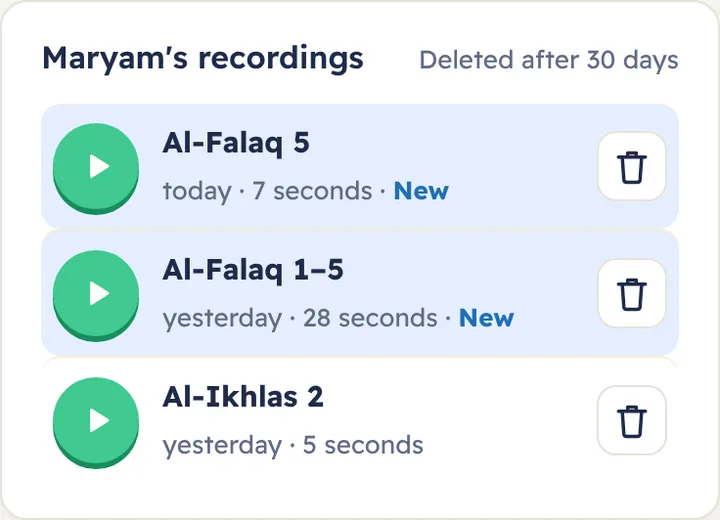
A student's new recordings reach you only after their parent agrees: on the student's device under “Parents”, then “My class”, then “Voice recordings for the teacher”, or on the child's page if linked from a family account. You hear them on the student's page, marked “New” until you listen, and they are deleted on their own after 30 days. If the parent turns it off, the recordings you received are deleted.
11The monthly report
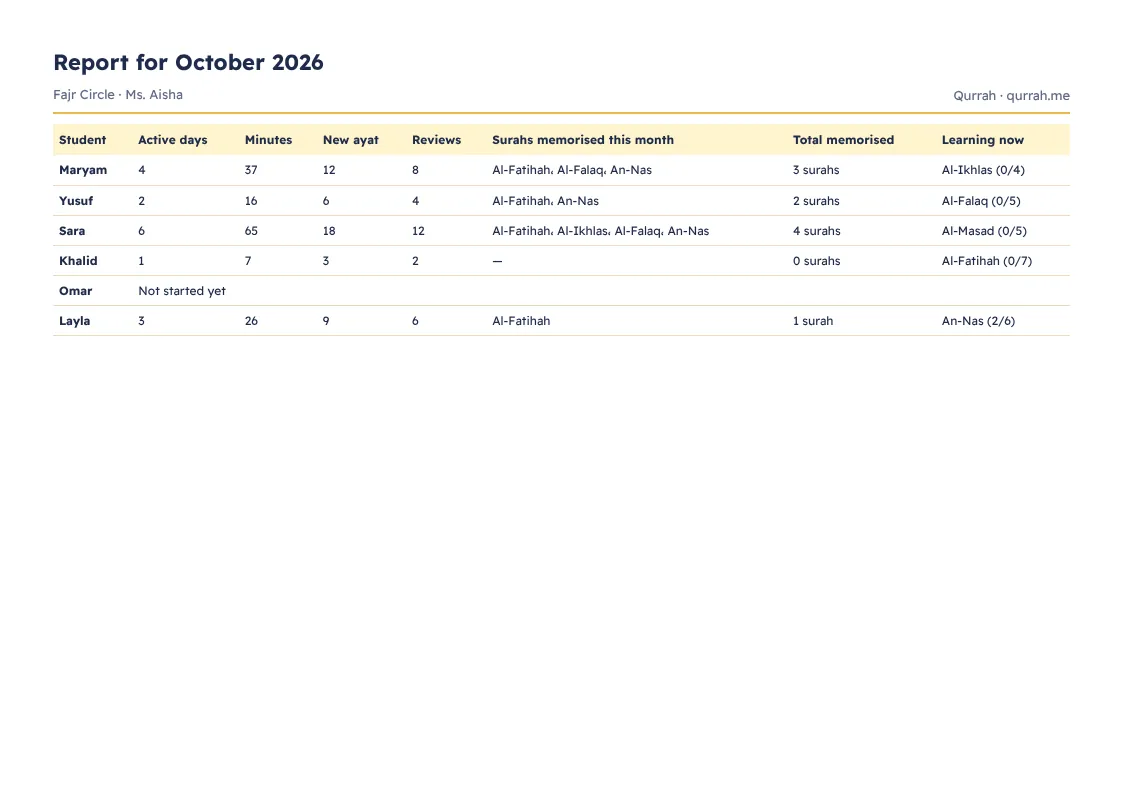
At the bottom of the class board, choose “This month” or “Last month”, then “Print or save as PDF”: one page for the whole class with active days, minutes, new ayat, reviews and the surahs memorized. Each student's page also has “Month report picture” to send to their parents.
Frequently asked questions
- Is the teacher account free?
- Yes. It is completely free, with no ads, like all of Qurrah.
- How many classes and students can I add?
- Up to 5 classes per teacher, and up to 40 students in each class.
- Does a student need an email or an account?
- No. The class code, their name and a 4-digit PIN are enough, on any device.
- A student forgot their PIN. What do I do?
- Tap the new-PIN button (↻) next to their name in “My classes” and give them the new one. Devices they already joined from stay signed in.
- Can I hear a student's recordings?
- Only after their parent agrees, and only from then on. No one else hears them, they are deleted after 30 days, and if the parent turns it off, the recordings you received are deleted.
- Does the app correct recitation automatically?
- No. You hear the student and verify their memorization; the app organizes their memorizing and review.
- What do students see of each other?
- In “My class”, each student sees this week's class heroes (the top 5 by stars and points) and your messages to them. They don't see others' recordings or memorization details.
- Does it work in class without internet?
- Joining the first time needs internet. After that, students memorize and review offline in the surahs they downloaded, and their progress reaches you when they are back online.
- What if a student leaves the class on their device?
- Their progress stays saved in the class, and they get it back with their name and PIN on any device.
- What happens if I remove a student or a class?
- Their progress in the class and their recordings are deleted for good, and they are signed out of all their devices. A child linked from a family account keeps all their progress in the family.
- Can parents follow along too?
- Yes. If a parent links their child to the class from the family account, they see everything in their dashboard, and you see what concerns the class.
Start your class now
Sign in, open “Parents”, then “My classes (teachers)”, and create your class in a minute.
Open “My classes”More sections
How a child memorizes in Qurrah · The surahs with meanings · Tajweed for kids · Quran stories